Blog

Router Vs Modem Vs Switch

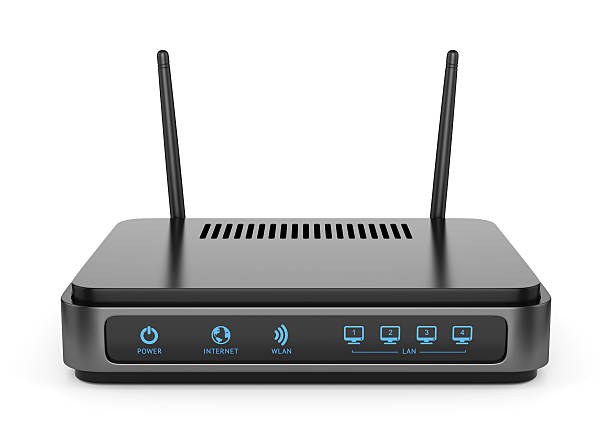
Now let’s say we wanna build a home network that allows different devices in our home to connect to the internet. We typically have a Router, Modem, and a Switch that is integrated into the home network. Now what are the differences between the three?

Firstly lets go over the basic definitions:

Modem:

A Modem is crucial hardware device that connects your Home to the Internet Service Provider(ISP) . A modem is known as a modulator-demodulator.

A modem primarily operates at the Data Link Layer (Layer 2) of the OSI model, acting as a bridge between your home network (Ethernet) and your Internet Service Provider’s (ISP) network.
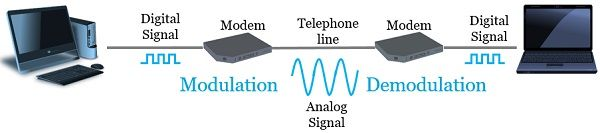
The Modulating part: Your computer communicates in binary (0 and 1), this is known as digital data. But your ISP signals are in analog. So the Modem just converts the 0s and 1s into analog waves(electrical signals on copper or light pulses for fiber) which travel to the ISP.

The Demodulating Part: Now apply the modulating part in reverse, this is where analog signals like electrical signals or light pulses get converted back into binary (the language the computer understands).

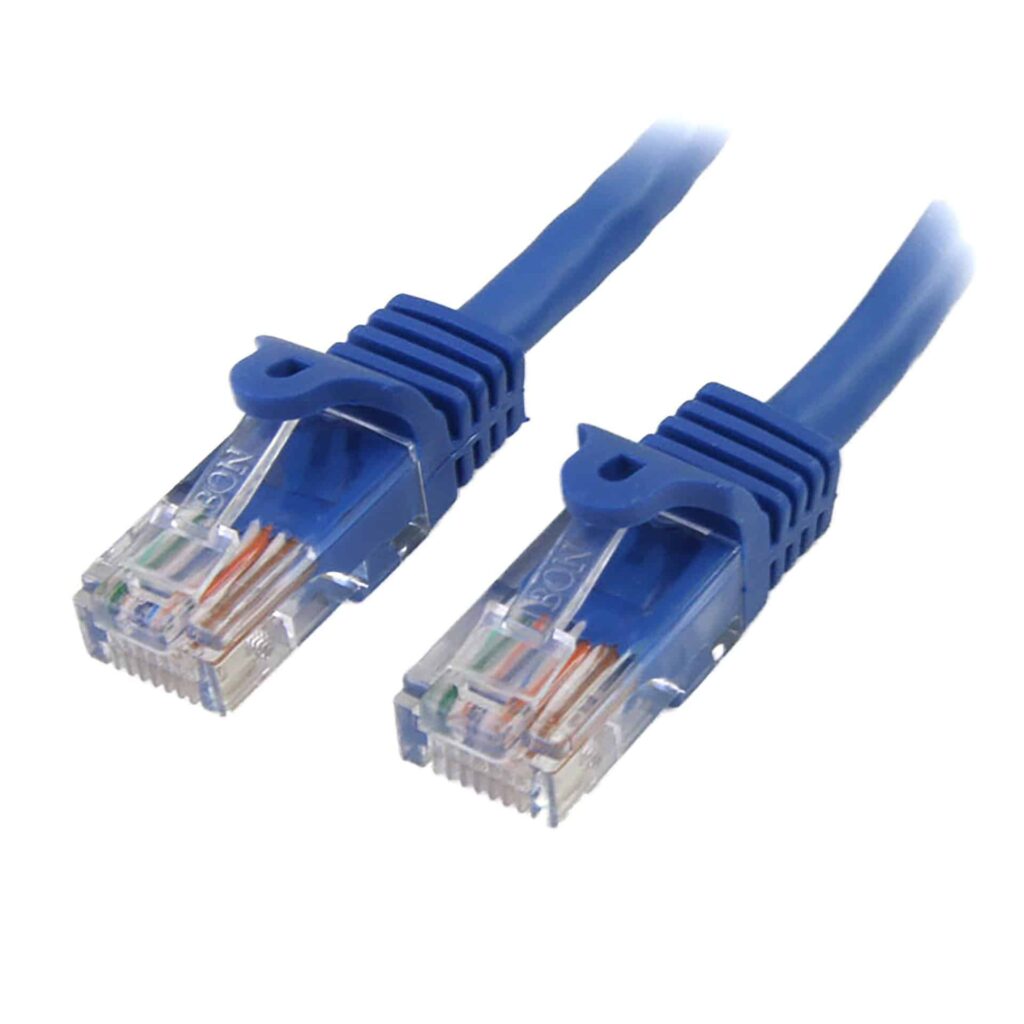
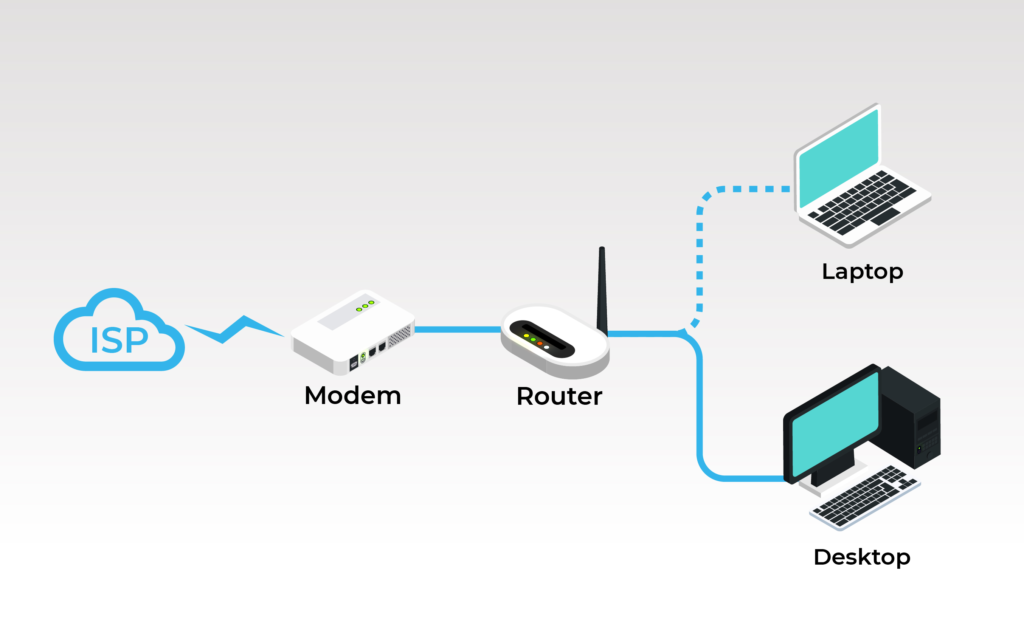
The modem connects to your router(via ethernet cable) and the router helps distribute that to the multiple devices in your home.
There are many different types of Modems depending on what type of signal you want to convert to. This blog will differentiate three types:

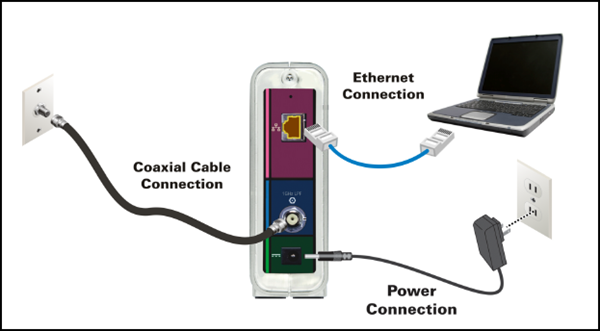
Cable Modems: A cable modem connects to the ISP via a coaxial cable(cable TV lines)

The coaxial cable connects to the wall outlet, which links to the ISP. Inside the wall outlet there is a coaxial cable drop that runs through the neighborhood to the company’s cable network.

Now for the modem to communicate with the ISP, it uses a set of rules and a language called DOCSIS. It is basically an internet protocol for coaxial cables.
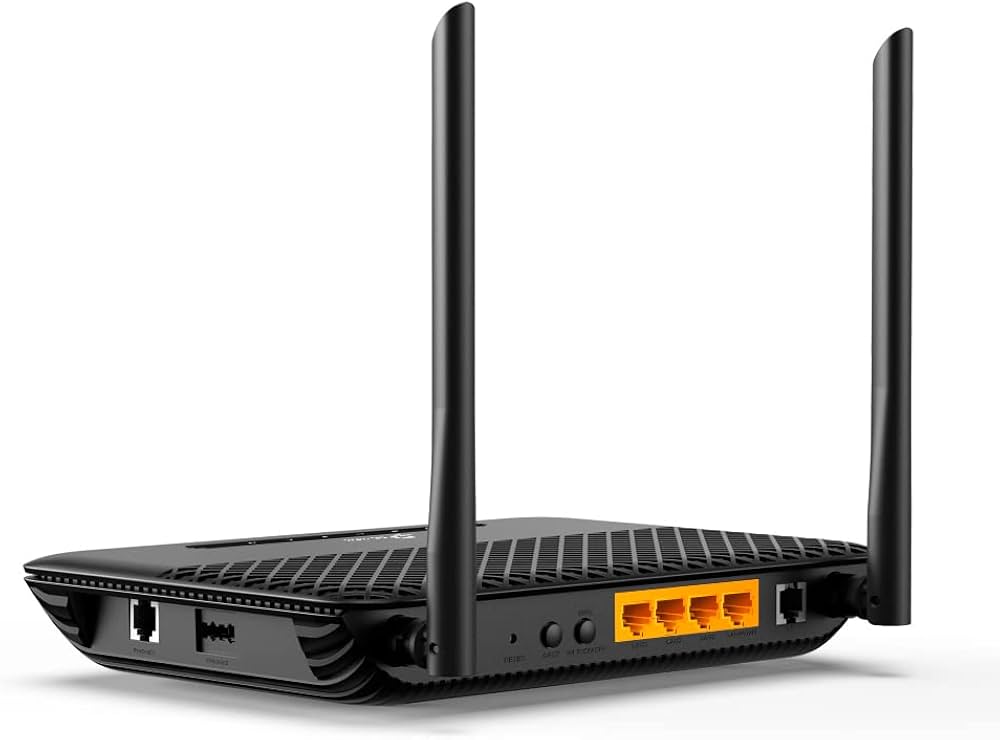
DSL Modems: A DSL(Digital Subscriber Line) Modem is a modem that connects to the ISP via existing phone lines(copper twisted pair). The difference between a DSL modem and a Cable Modem is that cable modems uses Cable TV(coaxial) lines while DSL modems use existing telephone lines.
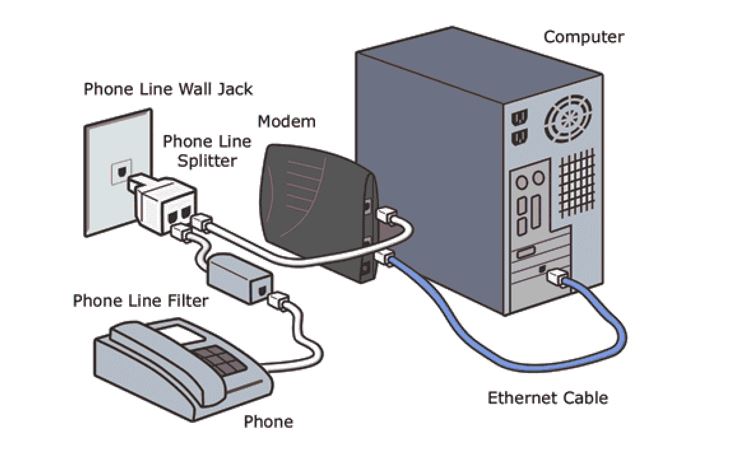
A typical DSL modem connection.
A DSL Modem

Cable modems are typically faster(shared bandwidth) whereas DSL Modems are slower and are distance dependent from the ISP. DSL models are used for lighter tasks while cable modems are used for heavier tasks such as gaming and watching TV which typically require fast internet connection.

ONT(Optical Network Terminal) : While it isn’t a modem or a router. It can be thought of the fiber optical version of a modem. It converts from fiber-optic light signals from the ISP into Ethernet data that your home can use.

So typically in a home, the fiber cable will be connected to the ETP(external termination point), this is where the underground fiber cables connect to your home.
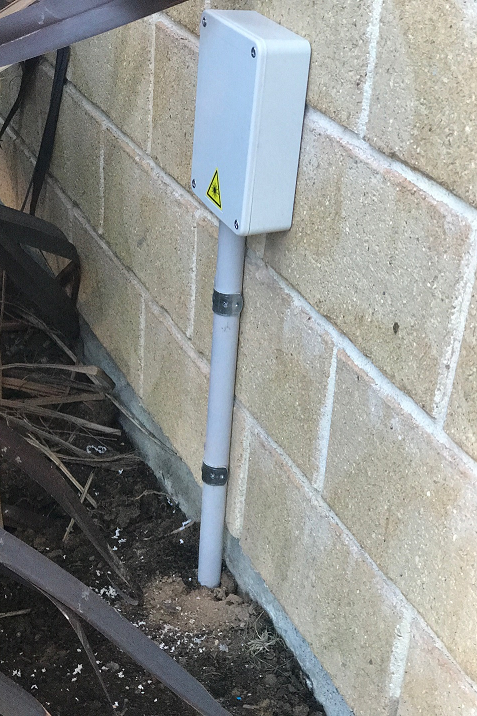
An ETP

Then from the ETP it is connected to the ONT which then provides internet to your devices. The ONT is connected to your router via an ethernet cable.
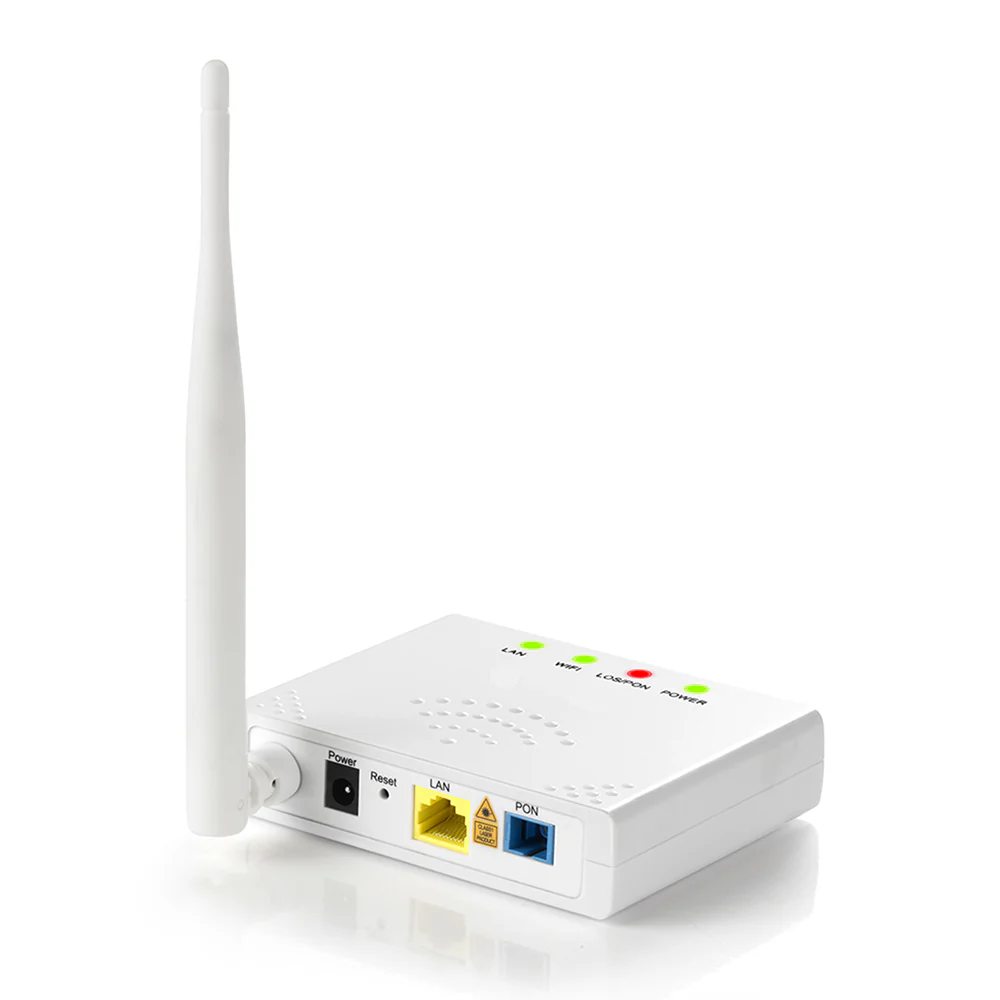
An ONT

An ONT typically has a fiber input, one or more Ethernet Ports(aka RJ45) to connect to your router, and phone jacks(aka RJ11). Some ONT’s even have coax ports for TV/Video, and sometimes even Wi-Fi and USB capabilities!

ROUTER:

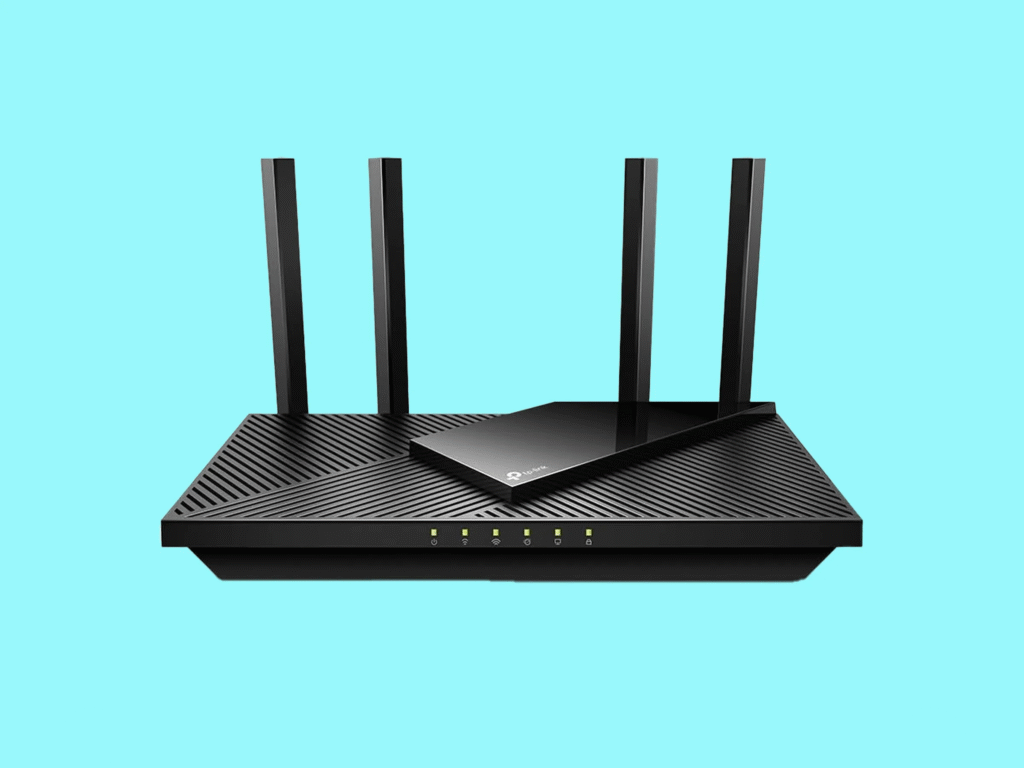
A router is a networking device that acts as a bridge between your home network(LAN) and the Internet Service Provider (WAN) and the global internet. The router operates at OSI level 3(Network Layer).

Since data packets are constantly being sent and received, the packets itself contain information about the source and sender’s destination IP’s, TTL(time to live), the protocol(TCP or UDP), the version, packet length etc. The router reads the addresses and finds an efficient path for the information to travel.

It allows several devices to share a single internet connection. The router helps preserve IP addresses by allowing multiple devices to share a single public IP address that is provided by your ISP. This process is known as Network Address Translation(NAT).
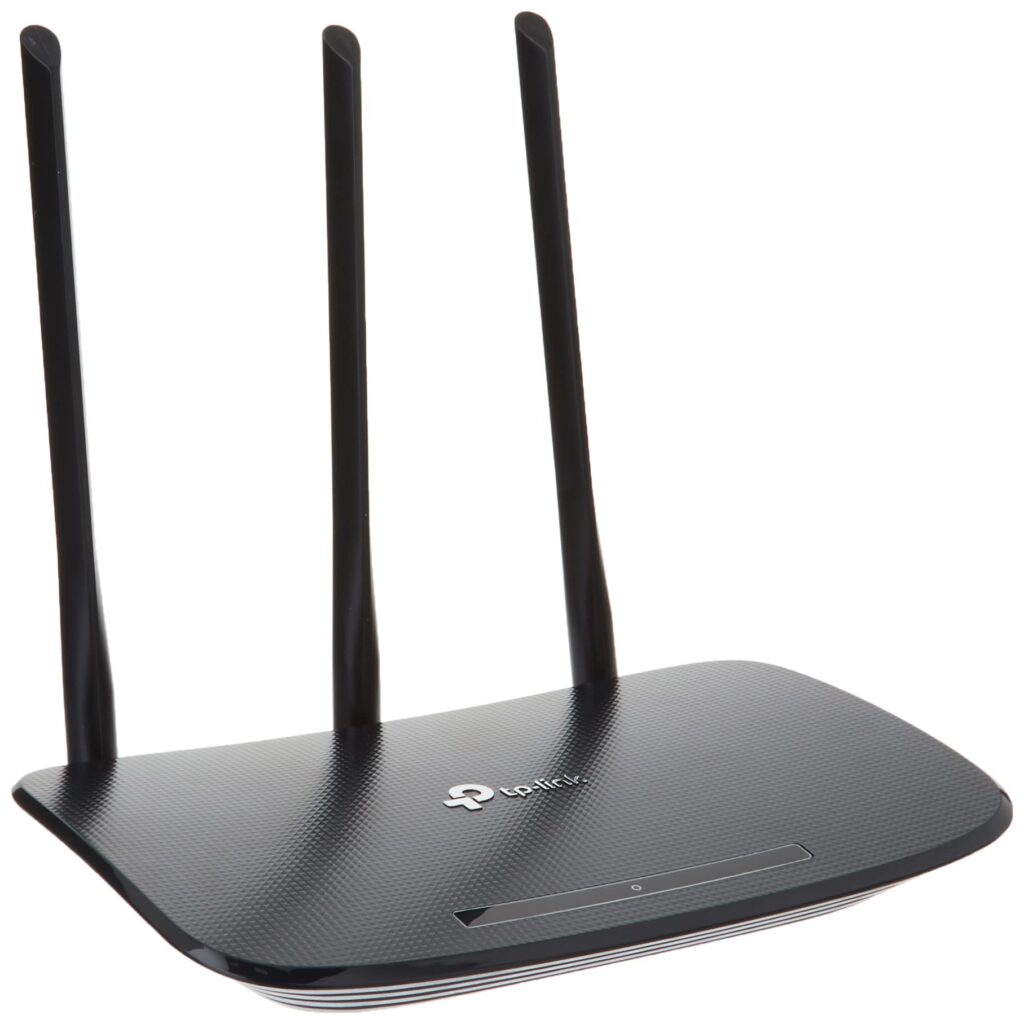
Version 1.0.0

Here a router receives data from the Modem, and examines the address and details, and then forwards the information through an efficient path.
SWITCHES:
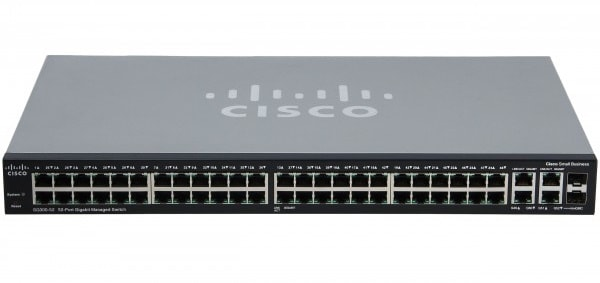
While a router helps devices communicate outside your home network, switches help your devices communicate within the same local network(LAN). Switches operate on the OSI Layer 2.

We use a switch to expand ethernet ports, just incase your Router runs out of ports we can use a switch to extend the Wi-Fi capabilities across many more devices.

A switch can be thought of as a central connection point.
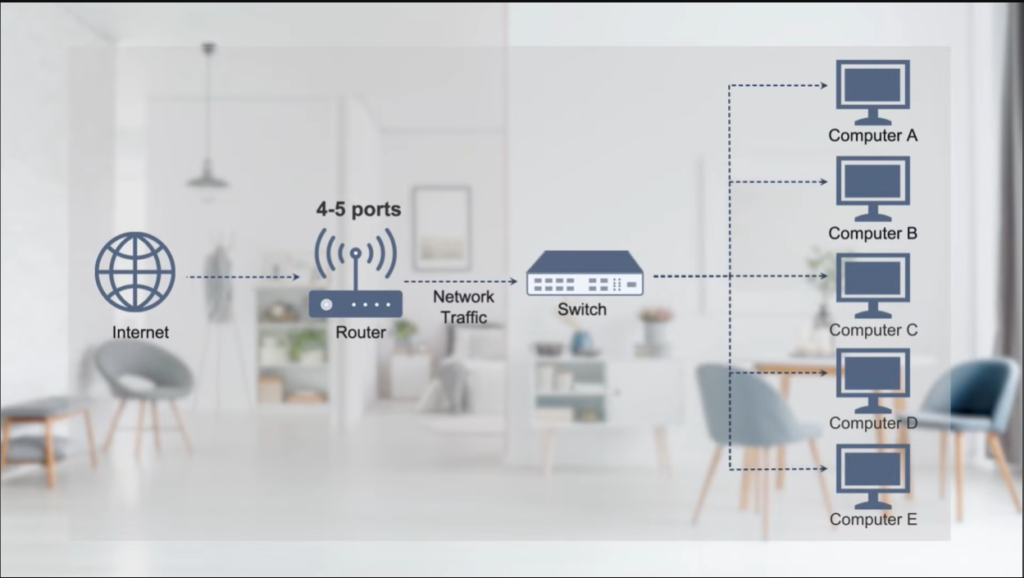
Here is an image of all three simultaneously used in a typical home network. Nowadays, routers have built in switches, so we don’t typically purchase a separate switch.

Image credits: QSFPTEK On You tube.
Blog #4: How DNS works

Remembering phone numbers can be hard, I get it. Which is why we have something called contacts on our phones.

DNS is similar, it converts your website names into machine readable IP addresses.

One such example is Google.com (domain name) –> 8.8.8.8 (ipv4) and 2001:4860:4860::8888 (ipv6)

Now requesting a website actually forces your computer to go through several steps.

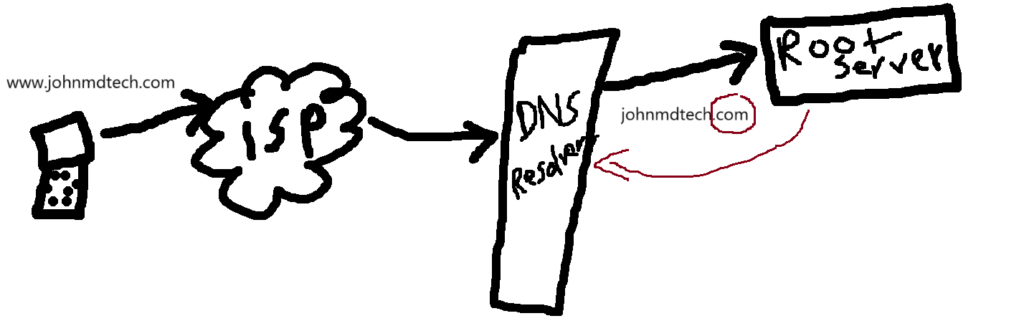
Lets say you request a website like johnmdtech.com,

1.) Your computer checks your local cache if you have already searched the site. It does this by going to your DNS Cache.

If it finds the IP address there, there is no DNS request needed.

On how to check your local DNS cache on windows, you simply go to ‘Command Prompt’, then type in ‘ip config /displaydns’ , and it will give you the recently resolved domain names.

On macOS, you can go to your terminal, and type

‘sudo discoveryutil udnscachestats’ and click enter, then you will be asked for your password and you can enter it and so on.

So something interesting is that the DNS cache expires based on the Time To Live Value which is in seconds. Most common domains have TTL values between 5 mins to 24 hours.

2.) If the site isn’t found in your local dns cache, the computer goes to the DNS resolver which is provided by your Internet Service Provider(ISP).

You can look at your ISP cache by running an ‘nslookup [website name]’

Typically the results will provide a server(your ISP) and an address. Since in a server many websites share the same IP address, you won’t be able to access the site with the IP address only, you may need the domain name.

Similar to houses on the street having the same street address.

3. If the IP address isn’t found on your DNS resolver then it goes to the ROOT server.

The DNS resolver forwards the query “johnmdtech.com” to the ROOT server. The Root servers are basically the backbone of the internet and is capable of redirecting you to the correct TLD address, in this case it’s the .com address.

4. The root server then recognizes the TOP-LEVEL Domain or TLD which in this case is .com the TLD in johnmdtech.com . The root server asks the DNS resolver where the .com domains are located. This happens if it can’t recognize johnmdtech which is the domain name. There are 13 total root servers.

5. Now after this, the DNS resolver asks the Top Level Domain Server (the TLD) about the list of all .com domains, and the TLD server replies with the authoritative nameserver that knows everything about johnmdtech.com .

6. Now the DNS resolver asks the authoritative nameserver(like ns1.yourhost.com) for the IP address of johnmdtech.com , and then the authoritative nameserver scans zone files, and replies with the IP address of johnmdtech.com.

After all these steps are done, the IP address is stored in the ISP cache or the local cache.

Blog 3: OSI Model

As we dive into Cybersecurity, it is important to understand the fundamental networking concepts. One such concept to understand is the OSI model which stands for Open Systems Interconnection model.

Now this model divides the way the network transfers data into 7 layers for better understanding. Data transfer can be complex and often requires various hardware and software technologies to work together to enable effective data transfer between boundaries.

Now without further ado, let’s get into the 7 layers:

We can remember the 7 layers using this abbreviation 

Please Do Not Throw Spicy Pasta Away.

  1. Physical Layer: Uses actual physical hardware to transfer data, this could be through wires, optical cables, or antennas.

2. Data Link Layer:

This Layer represents the protocol that nodes use to communicate in the same network segment. A common protocol is 802.11 (WIFI) and 802.3 (ethernet cable) , used for local networks. A network segment is basically a large network split into smaller chunks, that helps organize data transfer more efficiently and its also safer since a single breach won’t affect the whole segment. So devices in the same Wi-Fi network or ethernet cable can effectively communicate, because it breaks the data into smaller “frames” and sets protocols on how to communicate. It also helps with detecting MAC addresses around the same network and detects errors.

Now ethernet and Wi-Fi addresses are six bytes, and the addresses are known as MAC addresses, where it stands for MEDIA ACCESS CONTROL.

3. Network Link Layer:

Now moving on from local networks we are talking about the network link layer where communication happens between nodes on different networks, not the same network. It is in charge of finding the best path for devices to communicate and share data between different networks, it uses IP addresses as one of its protocols and there are other protocols too like ICMP(internet control message protocol) which is used for error reporting and IGMP(internet group management protocol). A good example would be a router, because it uses IP addresses to communicate in WAN and LAN network settings.

4. Transport Layer:

This layer helps two different hosts communicate through an application effectively. For example if you want to send a gif through WhatsApp or Instagram, the transport layer makes sure the other person on the app can receive the high quality image you want to send. It does this by using protocols such as UDP( User Datagram protocol) and TCP(Transmission control protocol). UDP relies on speed more than quality of data transfer, for example in online gaming you want more speed, rather than quality. On the other hand, TCP relies on quality over speed, for example you want to view the image on the email, so you need a reliable, ordered form of data.

5. Session Layer:

The session layer basically organizes communication between two hosts. It maintains the connection between the two hosts. It can encrypt, authorize, and authenticate the data shared during each session. For example if you are video calling your friend the session layer helps set up the connection, and maintains the call without interruptions. When a user signs into a website (establishment), keeps browsing while connected(management), and then logs out(termination) , all of these actions are part of managing their session. Some protocols are RPC (Remote Procedure Call) and NetBIOS.

6. Presentation Layer:

What’s the point of computer communication if the receiving application can’t understand? Well fear not, the presentation layer comes in clutch, this layer helps encode data for the application layer. It could be encoding ASCII code, or data encryption so that the sending and receiving end can actually understand. It can be thought of as a translator so that your friend can understand you speaking Chinese or something. Some file formats are JPG, GIFS, and PNGS that computers use to view images and files.

Blog 2: AD vs Entra ID

What is Azure AD, Microsoft Entra ID, AD?

Names can be confusing I get it…

In summary Microsoft Entra ID is simply the new name for Azure Active Directory.

Now there is a difference between the old school “active directory” and Azure active directory/ Microsoft Entra ID.

The main difference is that the “old school active directory” the user would come in on, and type their name and password for each server they needed to log into. So if there were 6 servers they would have to log in with multiple usernames or passwords. A traditional active directory also requires you to be in the network or the user has to be on premise. There this is referred to as an on premise active directory.

What is Microsoft Entra ID/ Azure Active Directory?

As mentioned both names are interchangeable and have the exact same functions. Azure AD was launched in 2008 , and was renamed to Microsoft Entra ID in 2023 due to the Entra product line in which Microsoft bundles all its products under. 

Now the Microsoft Entra ID is a cloud based identity solution which means it doesn’t require you to be on premise within the company’s network. It uses a SAAS based model which means Microsoft can use the same identity for applications such as teams, Microsoft 365 etc. 

In terms of logging in, the cloud based solution offers two factor authentication that relies on tokens, or claims to verify the user’s identity. Additionally since this isn’t premise based it can also verify that you log into a company with a valid IP address since users can attempt to log in from different areas since they aren’t “on premise”. 

TD:LR

  • Active directory refers to on prem network access
  • Microsoft Entra ID/ Azure Active Directory is interchangeable

On Prem Active Directory vs Microsoft Entra ID differences are outlined under the official microsoft website Comparison Table .